From purchase to your live website, step by step. Choose a compatible hosting provider. Start with the Custom guide, or select your template for its specific setup.
Vercel · Netlify · Coolify
Custom & templates
Step-by-step screenshots
Purchased an Instant Template?
You don't need this guide! Simply go to your success page after payment and click "Deploy to Vercel". Everything is automated.
Choose your project
What’s included with your website
Your website source code and access to its GitHub repository.
Your license key and project-specific setup details, delivered by email.
Content management features included with your project, plus this step-by-step guide.
The complete service reference is available in the Environment Variables guide. Configure only the integrations your website actually uses.
Before You Start
Step-by-Step Guide
1
Access your GitHub repository
After purchase, you will receive an email from Own Your Website with a direct link to your chosen template repository, or a GitHub invitation email (for custom projects).
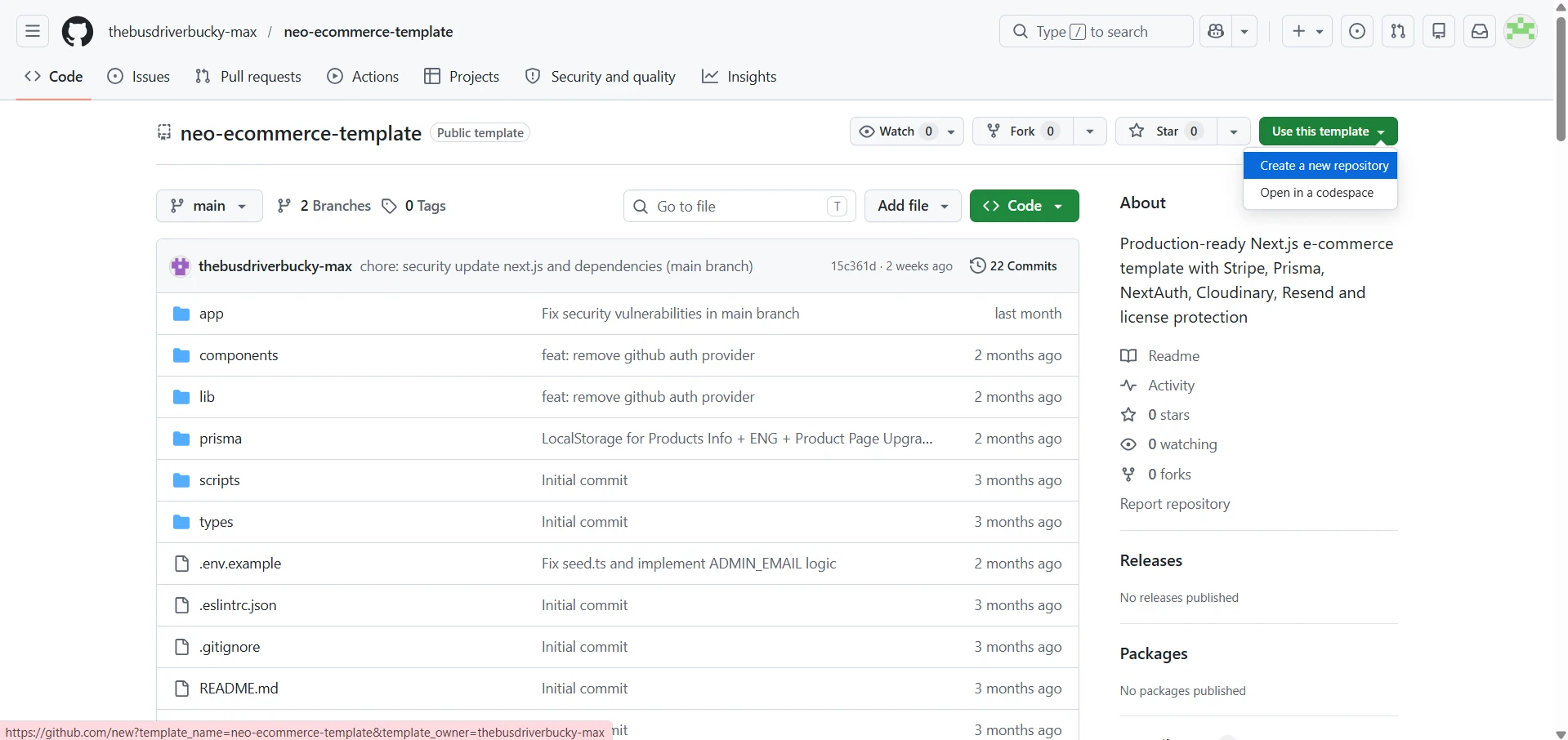
Click the link to access the repository and click "Use this template" to generate your own private copy, or accept the invitation to get access to your custom project. This is the repository for your website.
If you have already created your copy through Instant Deploy, use that repository instead of creating another one.
IMPORTANT: You must use the exact same GitHub account that accepted the invitation or the template.
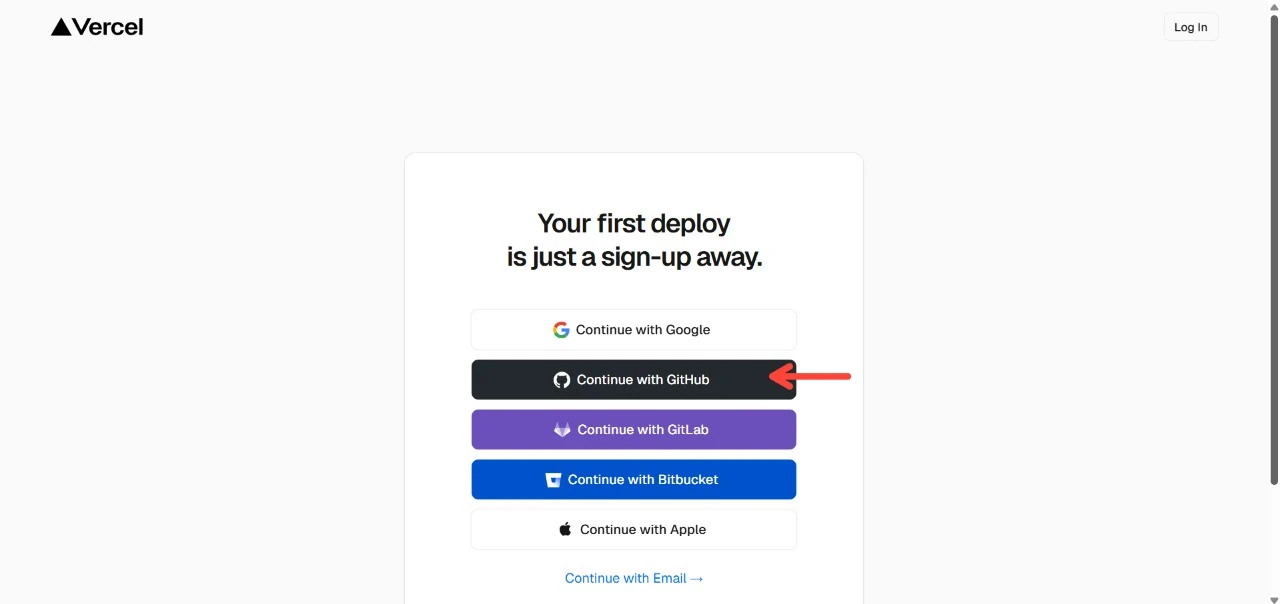
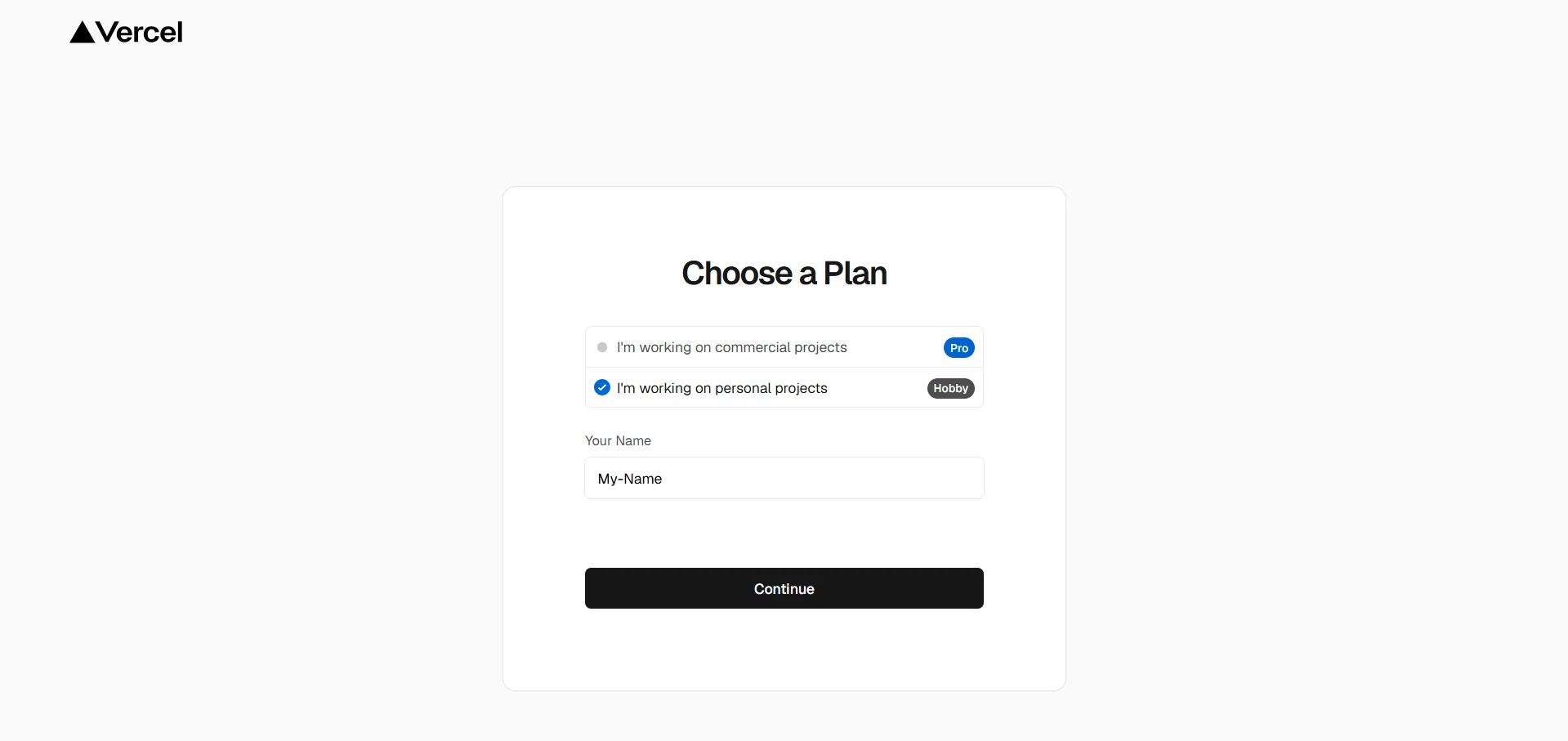
Choose a plan that permits your intended use and check current pricing and limits. Alternative hosts may need platform-specific configuration; these instructions do not certify every template on every host.
Screenshots show Vercel; your provider's interface may differ.
3
Import your repository
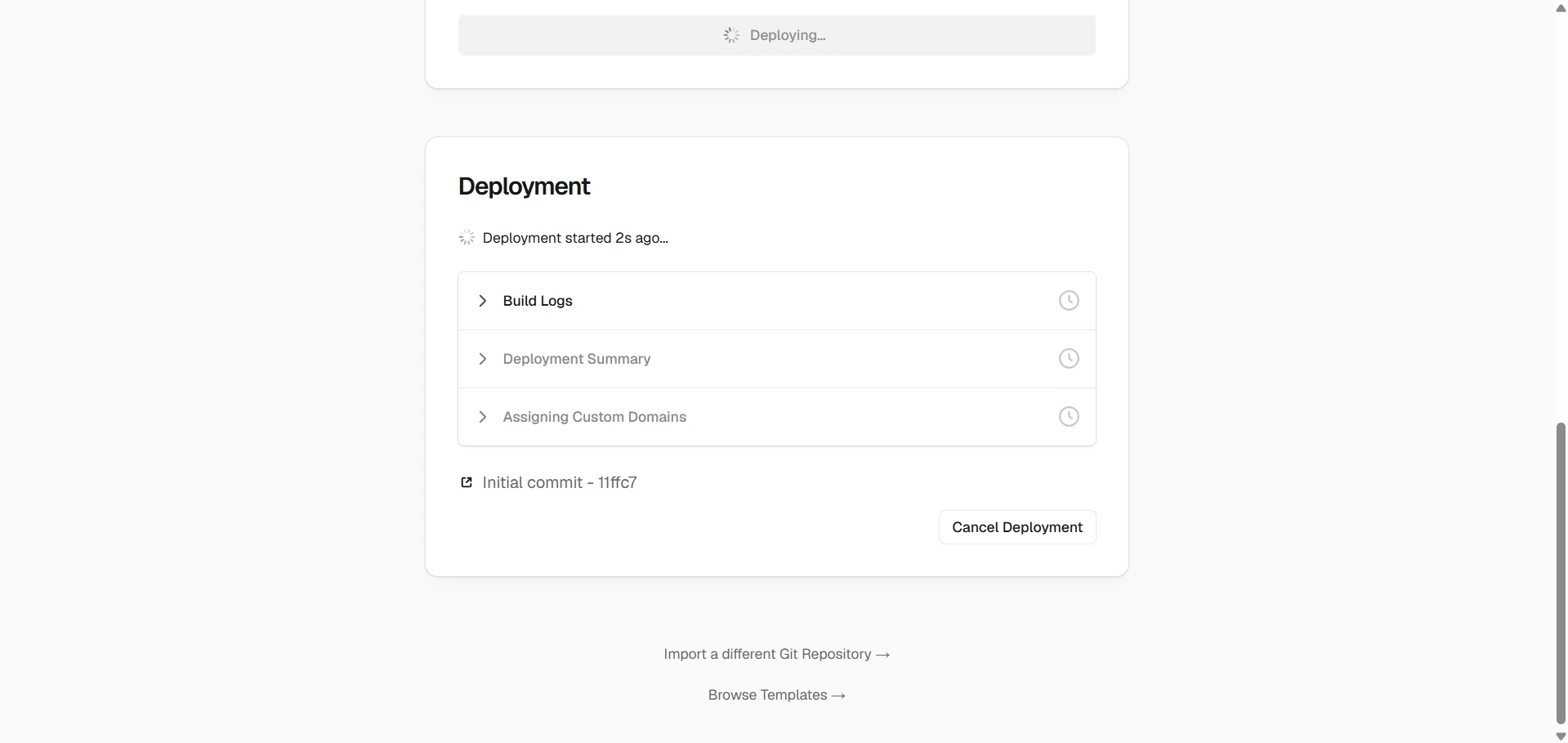
In the dashboard, choose Add New → Project → Import Git Repository. Find your website repository and click Import.
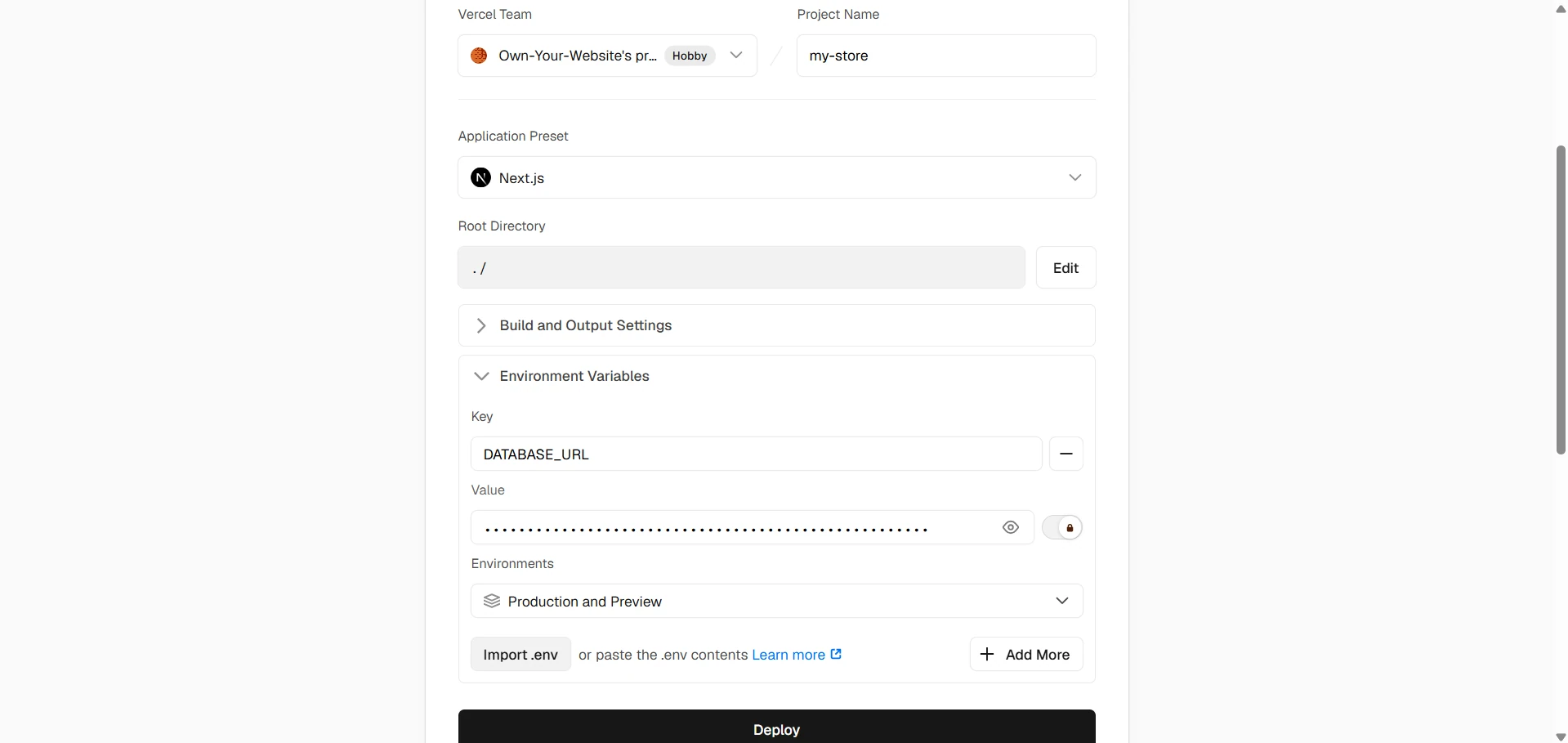
Keep the detected Next.js framework, select the correct root directory and branch, and use the build command supplied by your repository. Configure environment variables before clicking Deploy.
Screenshots show Vercel; your provider's interface may differ.
4
Configure Environment Variables
Open your hosting project's environment settings. Use the values supplied in your purchase email and obtain your own provider keys using the Environment Variables guide.
Template-aware .env Builder
Choose your template and enabled features to prepare its variables and generate secrets locally. Custom projects should follow their delivered variable list.
Values stay in this browser tab unless you explicitly enable persistent storage.
Use the build and database initialization process documented in your repository. Do not copy a seed or migration command from an unrelated template.
Open the deployed site, sign in to the admin area, and test your main user flow. A green build alone does not prove that forms, email, uploads or payments work.
If Stripe is enabled, configure the signed webhook and the authenticated reconciliation schedule. A hosting provider does not automatically run another platform's scheduled jobs; follow the repository's scheduler instructions.
Screenshots show Vercel; your provider's interface may differ.
6
Add your custom domain (optional)
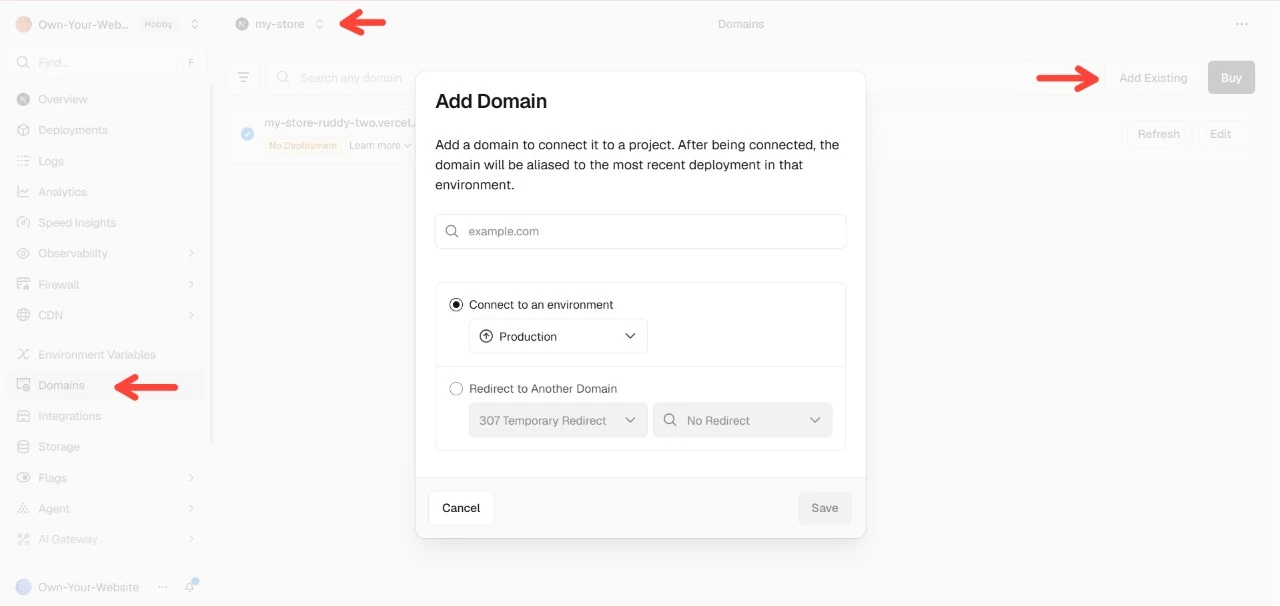
Open your project → Settings → Domains → Add Domain. Add your preferred hostname and, if needed, its www or non-www alternative.
Apply the exact DNS records shown for your project at your DNS provider. Use automatic configuration only if offered for your provider. Wait for verification and HTTPS, then redirect the alternative hostname to your primary one.
Use the DNS records provided for your own project, not an example IP address. Preserve existing email and verification records when changing DNS providers. DNS propagation may take up to 48 hours.
Update your application URL variables. For enabled integrations, also update OAuth callbacks, Maps website restrictions, email-domain verification and payment webhook destinations. Redeploy and test the exact final HTTPS domain.
For Stripe-enabled projects, follow the Stripe setup instructions. E-commerce and Taxi use /api/stripe/webhooks; custom sites must use their own documented route.
Screenshots show Vercel; your provider's interface may differ.
Never paste secrets into support chat, screenshots, source control, or client-visible variables. Send only variable names, redacted provider identifiers, release tag, and error messages when requesting help.
Common Issues
Need deployment help?
Our support team can help you deploy your website or even do it for you.
Include your project or template name and a redacted error message. Never send passwords, API keys, or other secret values.